
Documentation
Chapters
Read help articles, documentation, and other information about setting up and using Venjue in your business
Choose an article from the menu
Follow our step-by-step guide to embed the widget on your website, as well as in-depth explanations and examples on how to customize it to suit more advanced needs
Introduction
The Venjue Widget is a contact form embedded on a website, that handles booking inquiries and channels them into Venjue.
The widget can be added with a few lines of code. For added convenience we created a Wordpress plugin, that handles all the technicalities.
Embedding the widget
To add the widget to any website, or to have the full flexibility of the widget's customization options, we recommend using the manual installation option.
Manual installation
Add the following script to the website's <head> tag, to have the widget available on the site.
<script src="https://venjue.com/widget/script.js"></script>
:::[Caution!] Use the Venjue domain as provided. Hosting the script yourself will hinder future updates to the widget's functionality on the embedded site. :::
Add the following html before the closing </body> tag, and customize the setup to suit your needs by adding data-attributes to the container.
<div id="venjue-widget-container"
    data-businessid="%%12345678%%(Provide ID of Venjue business)"
    data-langcode="%%da_DK%%(Set desired language)"
    data-accentcolor="%%#8e8df2%%(Set desired theme color)"
></div>
Consult the developer console in your browser for errors and logs from the widget.
Customization options (data-attributes)
Note: All data-attributes should be prefaced by 'data-' when added to the container, e.g.
data-businessid="42410047".
Attribute Supported values Note businessid String, the unique ID of the Venjue business's VAT (CVR no) langcode String, either ' da_DK' or 'en_DK'accentcolor String, a HEX color code, e.g. ' #8e8df2'Include the hash (#) character hidebutton Boolean, either trueorfalseIf set to true, the button that triggers the widget will be hidden and thus the functionality will be limited, and you should instead trigger the widget's opening programmatically using the appropriate methodhidebackdrop Boolean, either trueorfalsegoogletagmanagerid String, e.g. ' GTM-xxxxxxxx'The widget automatically detects an active Google Analytics setup, but in case a specific ID is needed, or the auto detection did not work, a Google Tag Manager ID can be specified
Other options, like which steps to include in the inquiry flow, which products and venues to show, availability options and custom form fields are configured in Venjue.
Wordpress plugin
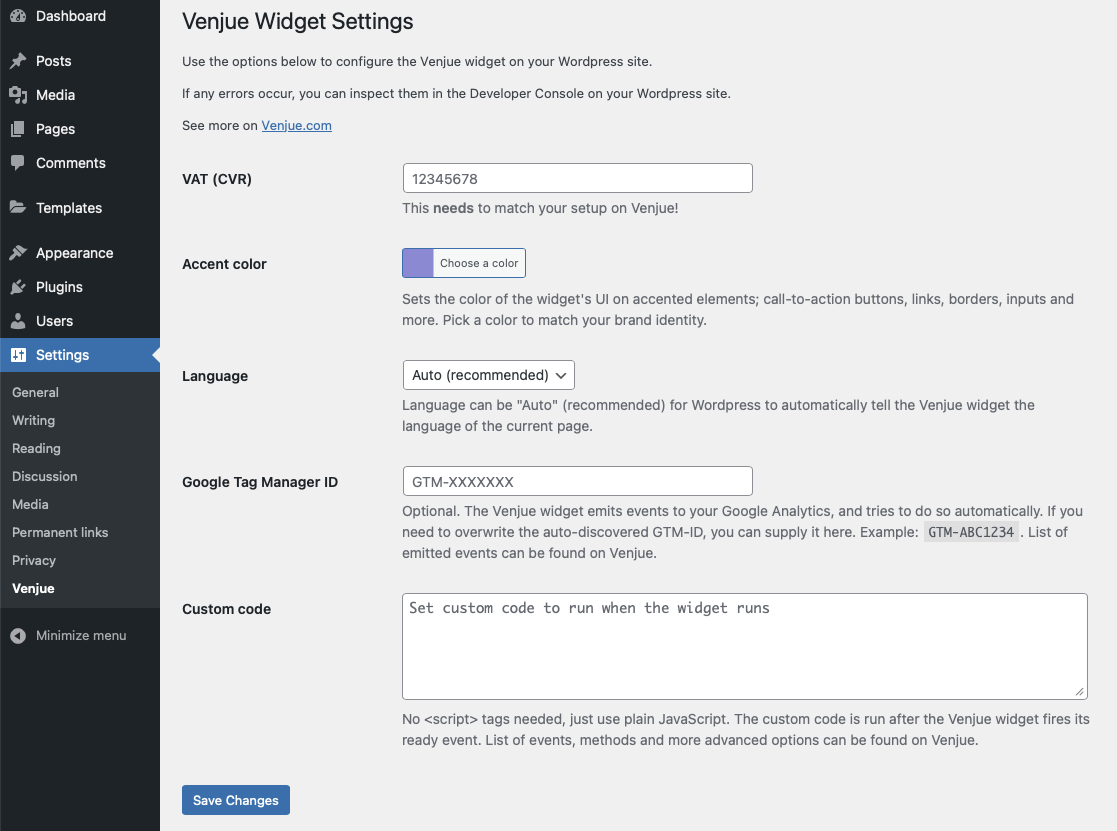
The Wordpress plugin automatically performs the same actions as the manual installation and provides a settings page to manage the customization options.
To get started, search the Wordpress plugin store for "Venjue Widget", click »install« and »activate« to add the widget to your Wordpress site.
You can also download the Wordpress plugin and upload it to your Wordpress installation manually.
When the plugin is installed and activated, there will be a submenu under your Wordpress settings, where you can configure the widget. See below screenshot.
Widget API
The Widget API provides methods to interact with the widget and events to tie other actions to the widget.
Methods
| Method | Action |
|---|---|
venjueWidget.show() |
Shows the widget |
venjueWidget.hide() |
Hides the widget |
Events
| Event | Action |
|---|---|
| venjueWidgetReady | Fired when the widget is initialized |
| venjueWidgetShown | Fired when the widget is shown (also added to Google Tag Manager data layer) |
| venjueWidgetHidden | Fired when the widget is hidden (also added to Google Tag Manager data layer) |
| venjueWidgetSubmitted | Fired when the widget is submitted by the user (also added to Google Tag Manager data layer) |
Code example
The following is a code example to open the widget whenever clicking on a link with the class of 'openVenjueWidget':
document.addEventListener("venjueWidgetReady", function() {
    document.querySelector(".openVenjueWidget").addEventListener("click", function(event) {
        event.preventDefault();
        venjueWidget.show();
    });
});
Didn't find what you were looking for?
Contact us to get additional help